Almost nobody drives to one well and goes home.
A production operator has six locations to check. A fluid hauler has four pickups and a disposal site. A service crew has three wells and a yard to get back to before shift end. The route is not a trip. It is a run.
Until now, Oilfield Route handled that the way most tools do: one destination at a time. You navigated to the first well, arrived, opened the app again, searched the next one, and drove. The sequence lived in someone's head, on a whiteboard in the dispatch office, or on a sticky note on the dash.
Today we are releasing multi-stop route planning and optimization. Build the whole run in one route, then let the app work out the order.
It is a Pro plan feature, and it runs on the device. You can build and optimize a run with the phone in airplane mode.
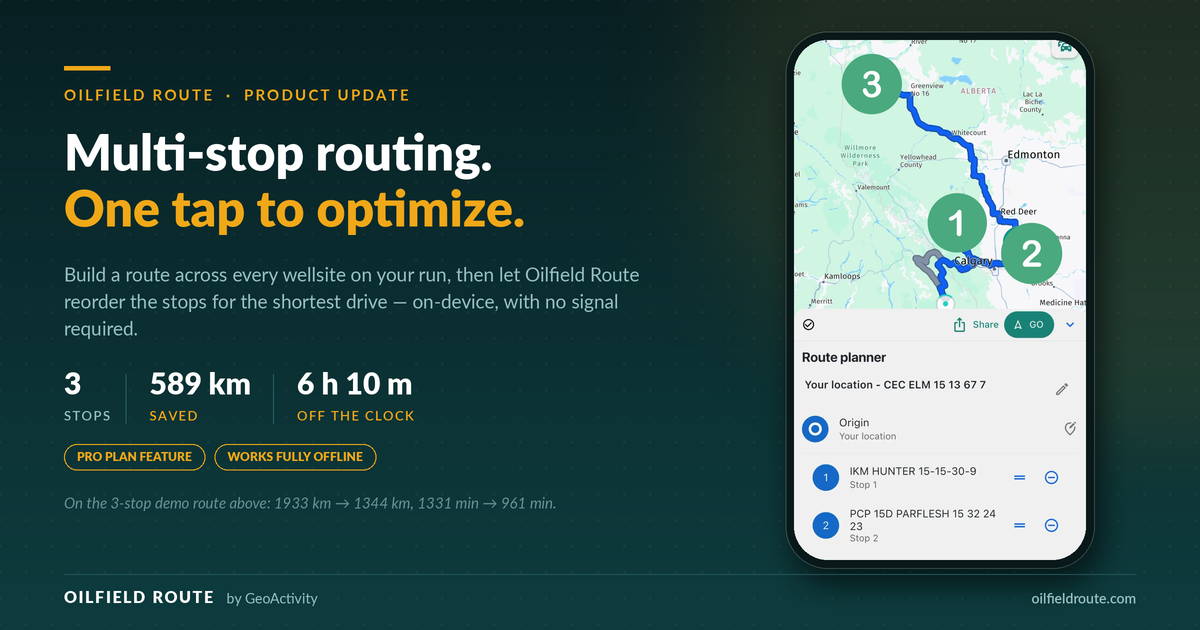
Multi-stop routing.
One tap to optimize.
Build the whole wellsite run, optimize the stop order on-device, and keep navigating with no signal.
How a run gets built
The flow starts where it always has: with a well.
Search for the first location by name, UWI, API, or land description, open it, and tap Create route. That becomes Stop 1, with your current position as the origin. From there, Add stop opens the same search you already use, and every well you pick joins the list.
Add the four locations on today's run, or the nine on a long swing, and each one lands in the planner with a numbered pin on the map.
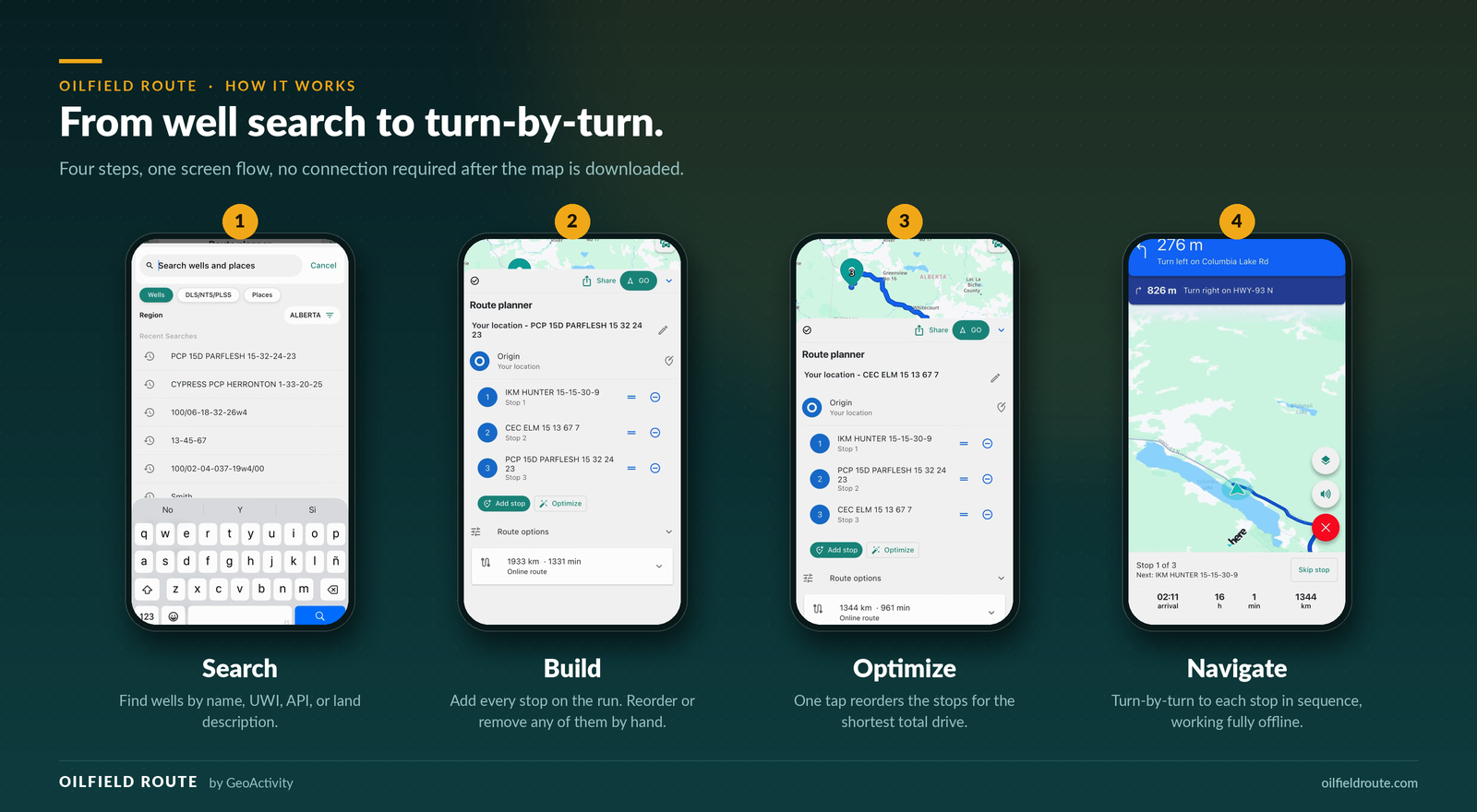
How it works
From well search to turn-by-turn
Step 1 of 4
Search
Find wells by name, UWI, API, or land description.
Step 2 of 4
Build
Add the whole run, then reorder or remove stops by hand.
Step 3 of 4
Optimize
One tap reorders flexible stops for the shortest total drive.
Step 4 of 4
Navigate
Drive to each stop in sequence with full offline navigation.
You stay in control of the list. Drag the handle to reorder a stop by hand. Use the circle-minus control to remove one. The route redraws and the distance and drive time update as you go. If the order matters for operational reasons, such as a sample that has to be collected first or a site that only opens after 10:00, you set it yourself and leave it alone.
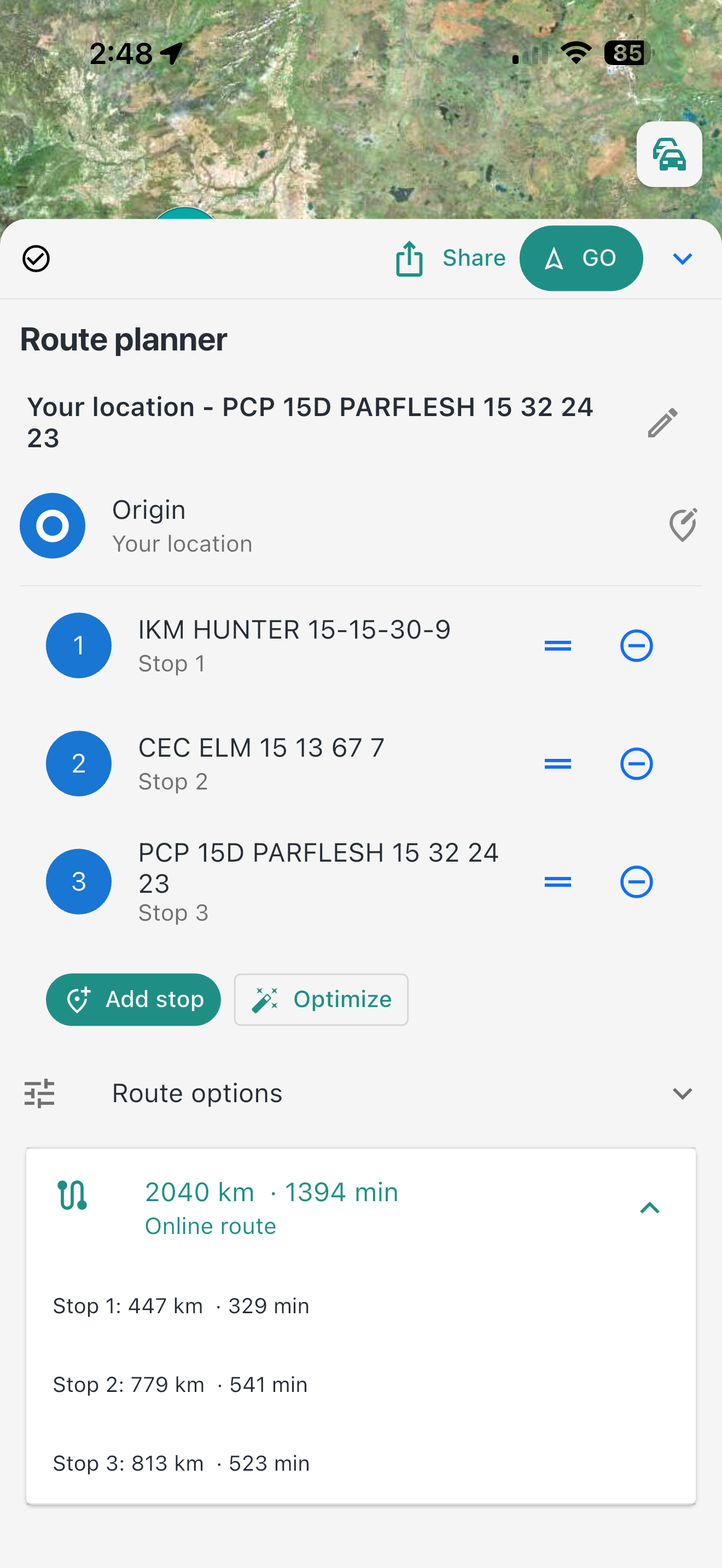
The whole run stays visible and editable
The planner keeps the controls and drive estimates together, so a change to the run does not mean starting over.
- Remove any stop with the circle-minus control beside its name.
- Preserve the order you need by pressing and dragging the handle beside a wellsite to move it into your preferred position.
- Check the complete run using the total distance and estimated drive time.
- Expand the route details to see the distance and driving time associated with each stop.
Keep dispatch and the driver on the same route
From a dispatcher's point of view, the value is not only finding a shorter sequence. It is being able to send the complete run as one planned route instead of sharing each wellsite separately and leaving the driver to rebuild the order.
Tap Share in the route planner to share the whole route, including its ordered stop list. Dispatch can build the run and send it to the driver, or a driver can send the plan back for review. Either way, everyone is working from the same sequence before the truck leaves the yard.
One shared route gives dispatch and the driver the same stops in the same order.
What one tap actually did
When the order does not matter, tap Optimize.
The app reorders the stops to minimize total driving while keeping your origin fixed. Here is the three-stop route from our own demo, with real numbers from the app.
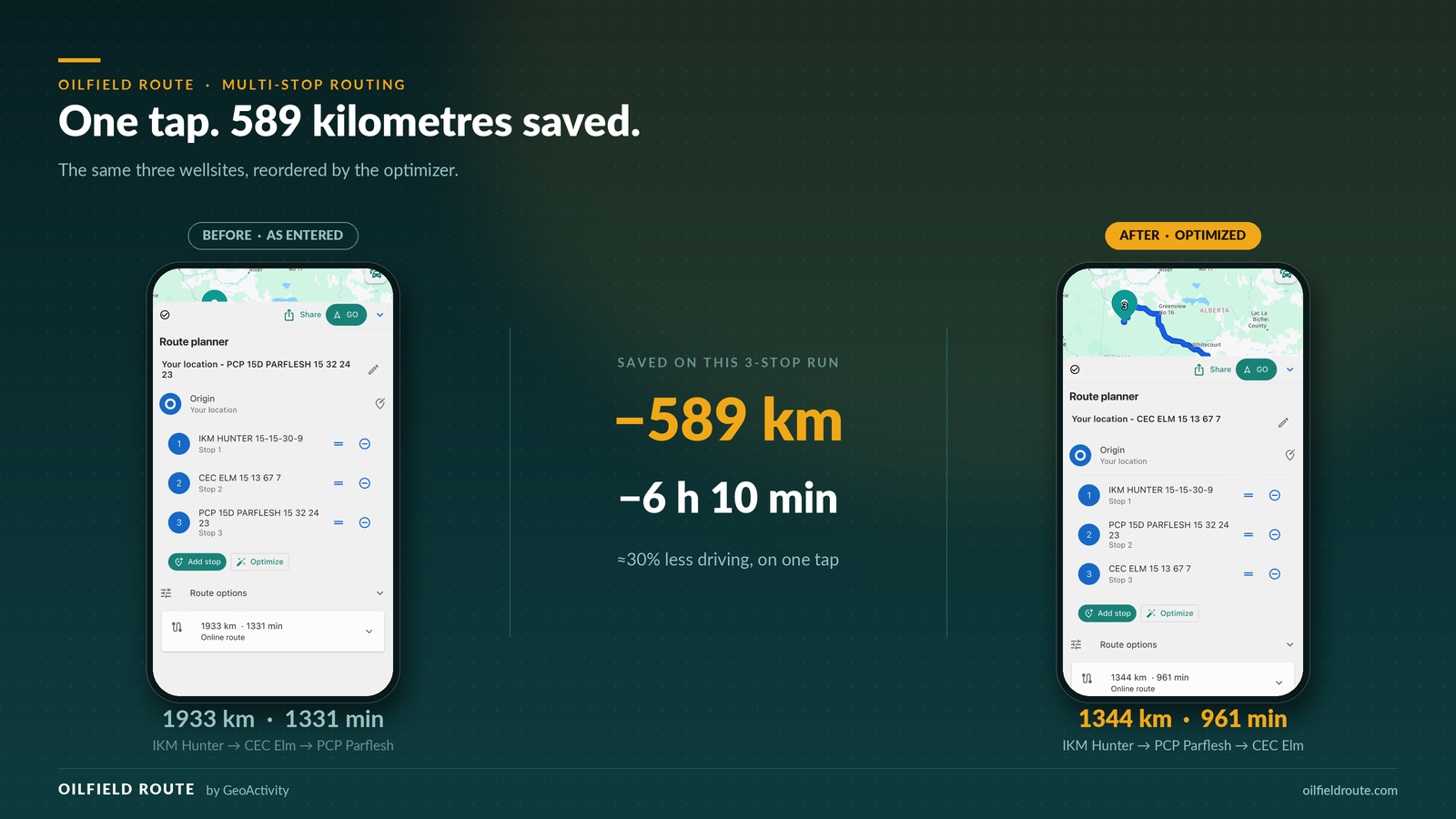
Entered in the order the wells came to mind, the route ran 1,933 km and 1,331 minutes. Optimized, the same three wellsites ran 1,344 km and 961 minutes.
That is 589 kilometres and six hours and ten minutes of driving removed from a three-stop run, roughly a 30% cut from one button.
It is worth being clear about why that gap exists. The optimizer did not find a shortcut or a faster road. It just noticed that the third well entered was geographically between the first two, and visiting it second instead of last removed a long backtrack. That is exactly the kind of mistake that is invisible when you plan a run in your head and obvious once the whole route is on a map.
If you preferred the original order, Undo optimization puts it straight back.
A wrong turn costs you twenty minutes. A wrong sequence costs you the afternoon.
It optimizes with the phone in airplane mode
This is the part that separates it from most planning tools.
Optimization runs on the device against your downloaded region map. There is no server round trip, which means you can re-plan a run from a lease road with no bars: after a job gets cancelled, after dispatch adds a location, or after a gate turns out to be locked.
That matters because runs change most often in exactly the places where coverage is worst. A planner that only works in town is a planner that stops working the moment you need it. Download the region once, and the whole loop — search, build, optimize, and navigate — keeps running.
What it looks like from the driver's seat
Once the route is set, GO starts turn-by-turn navigation through the stops in order.
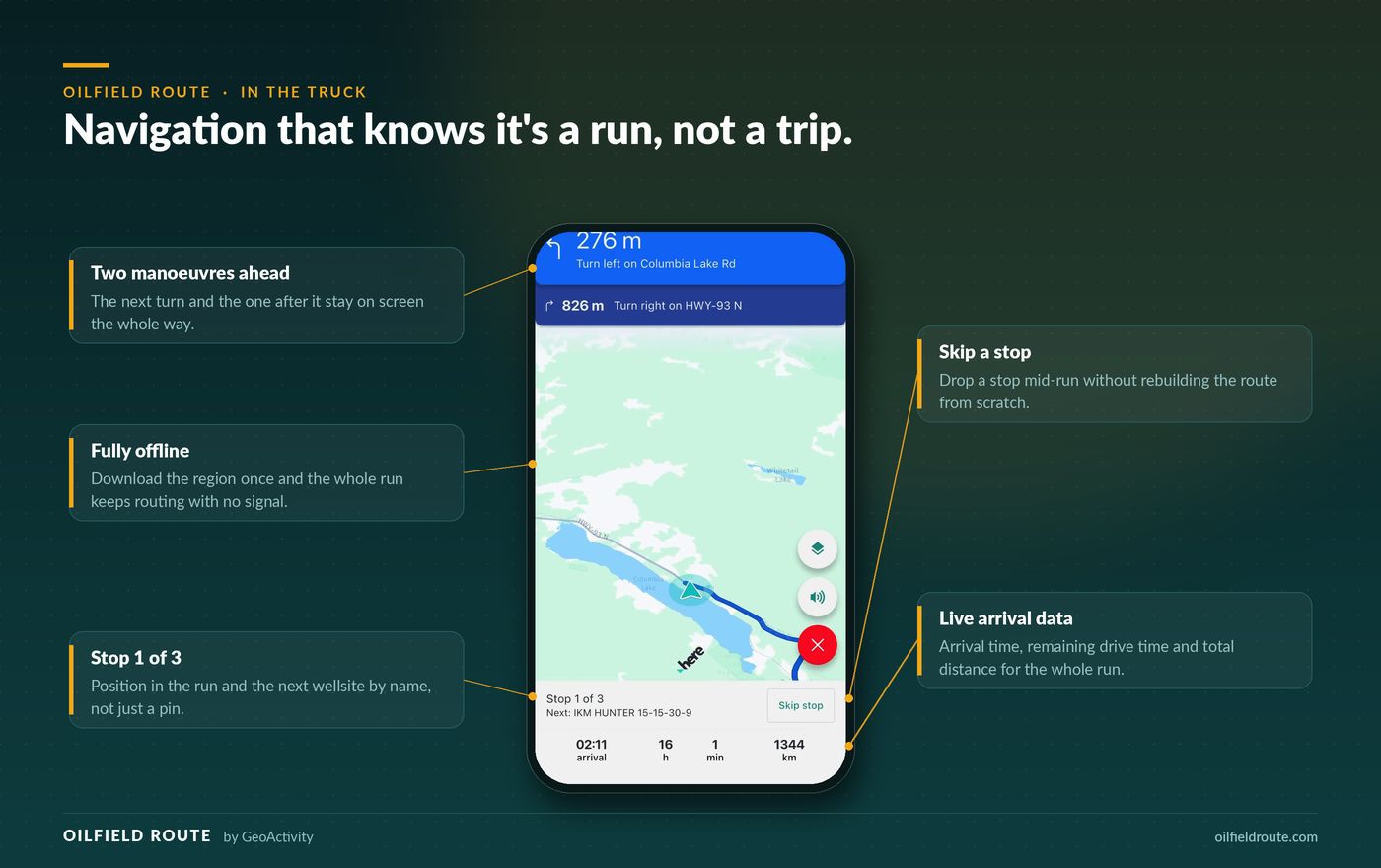
The whole run stays in view
See your position in the sequence, the next named wellsite, and live arrival information without leaving navigation.
The details that matter on a run, rather than a single trip, stay visible while you drive:
- Stop 1 of 3 is always on screen, so you know where you are in the sequence without counting backwards from memory.
- The next stop is named, not just numbered. “Next: IKM HUNTER 15-15-30-9” is a well, not a waypoint.
- Remove stop handles the reality of the field. If a gate is locked, a site is shut in, or dispatch reroutes you, remove the stop and continue to the next one without rebuilding the route.
- Arrival time, remaining drive time, and total distance are for the whole run, not just the leg you are on. That is the number dispatch actually wants when they ask when you will be clear.
Why this reduces non-productive time
We wrote earlier about the hidden cost of non-productive time, and route sequencing is one of the clearest examples of it.
An inefficient sequence does not look like a failure. Every individual leg is routed correctly. The truck never gets lost. But the run takes six hours longer than it needed to, and that time shows up as fuel, engine hours, overtime, and a service window that closed before the crew arrived.
Multi-stop planning makes the whole run visible before the truck leaves the yard, which is the only point at which the sequence can still be fixed cheaply.
Getting started
Multi-stop routing is available in the current release on iOS and Android on the Pro plan, alongside offline turn-by-turn navigation and vehicle-optimized routing.
- Update the app to the latest version.
- Download the regional map package for your operating area before you leave coverage.
- Search your first well, open it, and tap Create route.
- Add the rest of the run, then tap Optimize and compare the before-and-after distance.
Install it now and keep routing when the signal drops
Choose your device, download the regional map package for your operating area, and head out with offline routing ready before you lose coverage.
The bottom line
Getting to one wellsite is navigation. Getting to six in the right order is planning, and it is where most of the drive time on a shift is won or lost.
Multi-stop route planning and optimization puts that decision in the app instead of in someone's head. Build the run, tap once, and drive the short version.
Multi-stop routing is part of Pro. Compare subscription options or review the core features to see what each plan includes.